Notifications & Price Alerts
TCGCompare's notification system lets you track products and games so you never miss a price drop, restock, or new listing. You can receive alerts via your inbox, email, and push notifications — all configurable per subscription.
Getting Started
Signing In
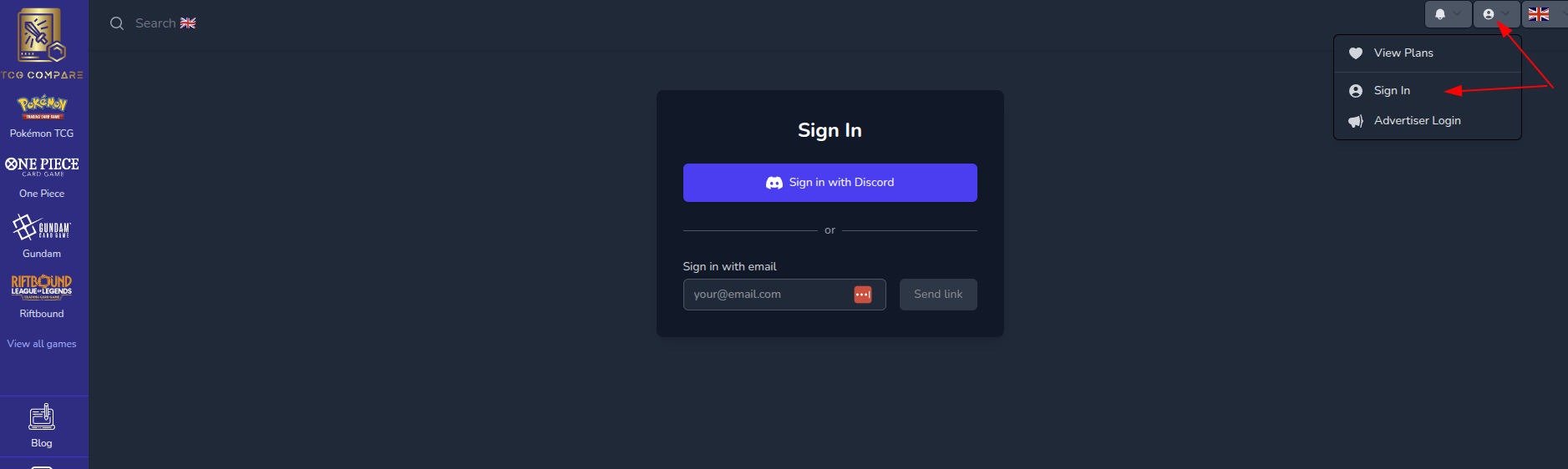
To use notifications, you need to be signed in. TCGCompare offers two sign-in methods:
- Discord — Sign in instantly with your Discord account
- Magic Link — Enter your email and we'll send you a one-click sign-in link (no password needed)
TIP
If you already have a Discord account linked to TCGCompare, signing in with email using the same address will connect to your existing account automatically.
Tracking Products
Track a Single Product
- Navigate to any product page
- Click the Track Product button below the country tabs
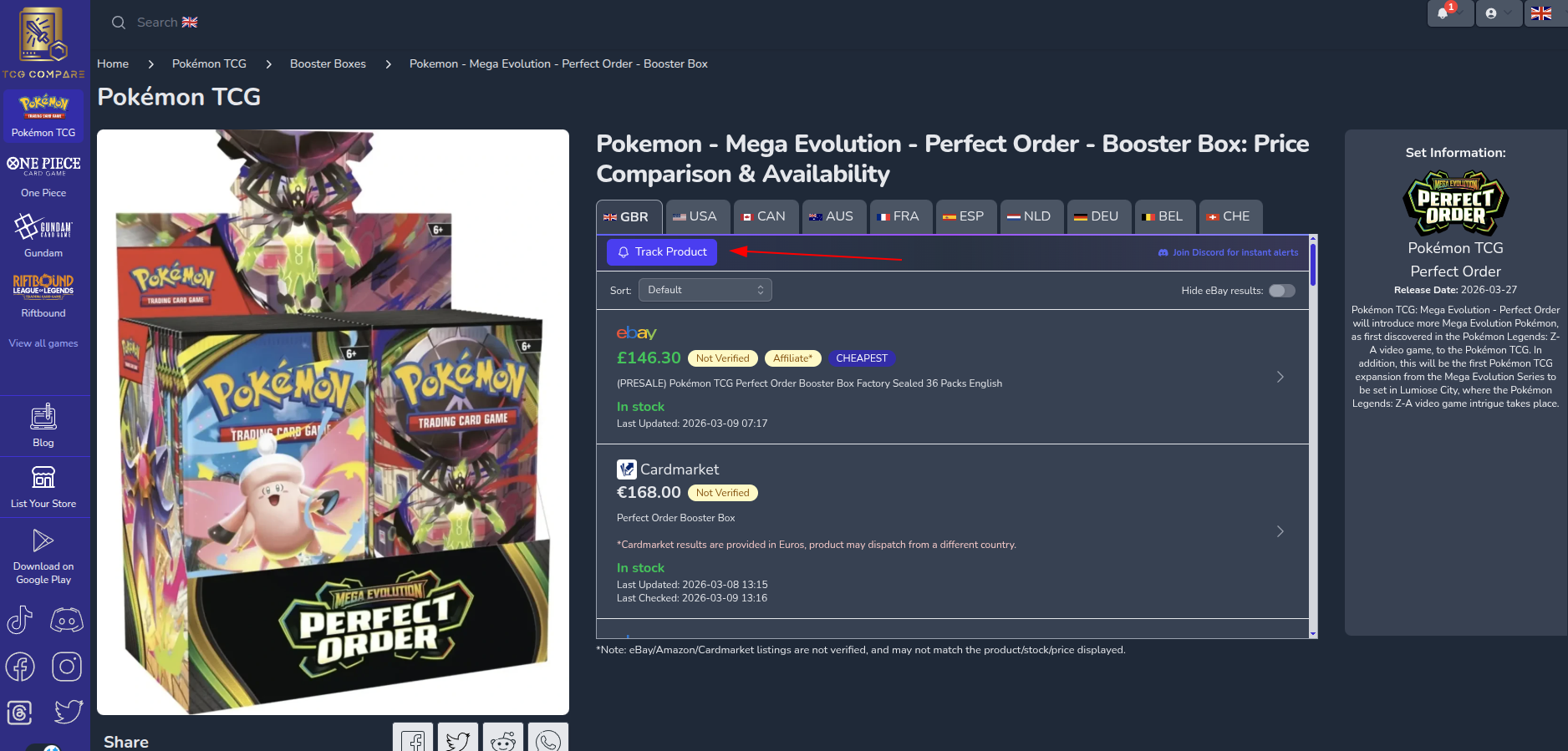
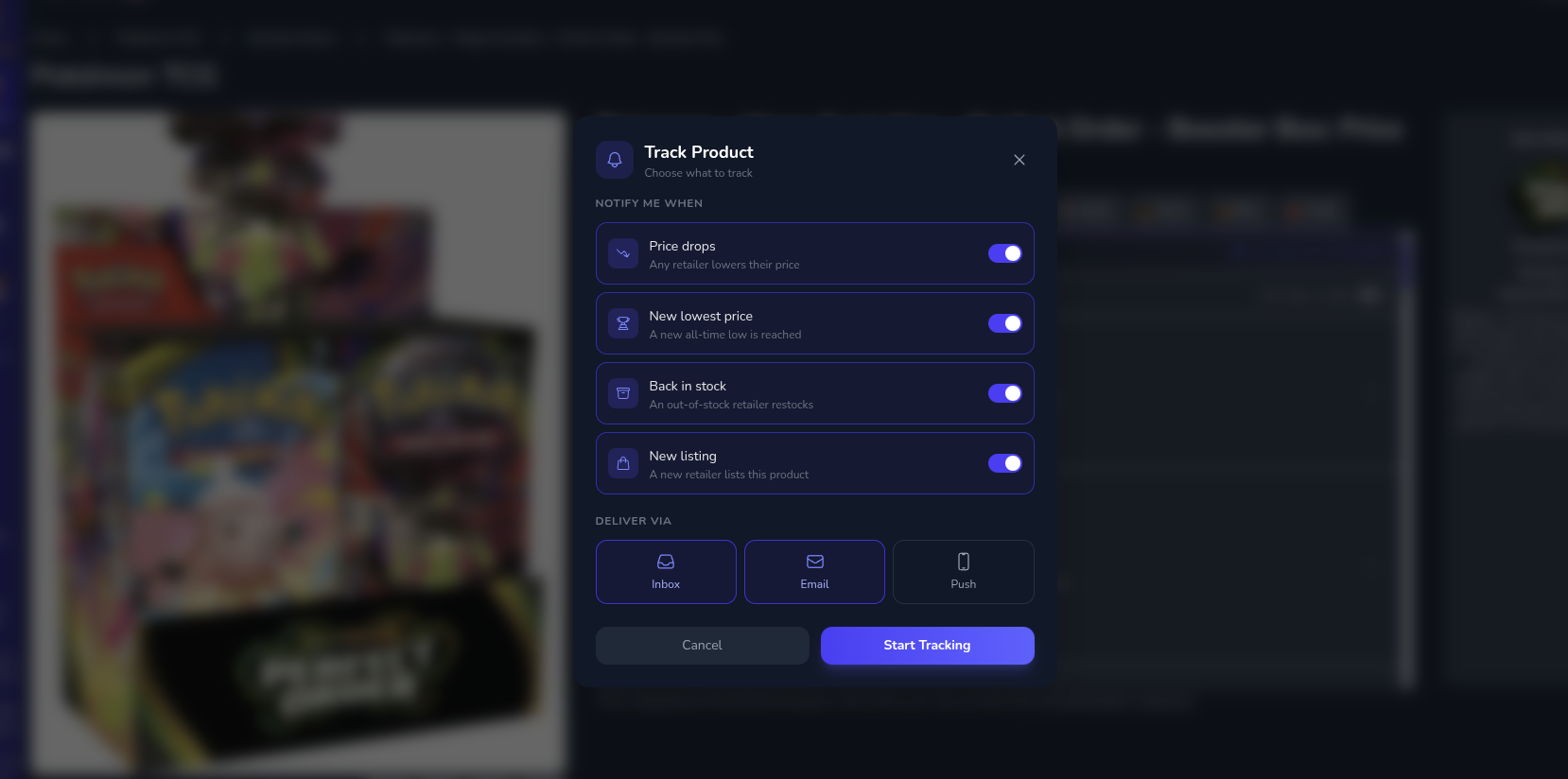
- A modal will appear where you can choose what to track and how to be notified:
Trigger Options
| Trigger | What it does |
|---|---|
| Price drops | Notifies you when any retailer lowers their price |
| New lowest price | Notifies you when a new all-time low is reached |
| Back in stock | Notifies you when an out-of-stock retailer restocks |
| New listing | Notifies you when a new retailer lists this product |
Delivery Channels
| Channel | Description |
|---|---|
| Inbox | View notifications in your TCGCompare inbox (bell icon in the header) |
| Receive an email alert with price details and a direct link | |
| Push | Get a browser push notification — even when TCGCompare isn't open |
Toggle any combination of triggers and channels, then click Start Tracking.
Editing a subscription
Once you're tracking an item, the button changes to Tracking. Click it again at any time to reopen the modal and manage your alerts — adjust triggers and channels, or Stop tracking to remove the subscription entirely.
Set a Price Target (Supporters)
A price target lets you stay subscribed to a product but only be alerted while it's actually available at a price you'd pay. Instead of hearing about every price change, you'll only be notified about listings priced at or below the amount you set.
Supporters only
Price targets require an active supporter subscription and can only be set on individual product watches — not games, sets, or categories. Free users can still track up to 10 products; you'll see the price target option with a link to become a supporter.
You can set a price target in two places:
- From the Track modal — When tracking a product, open the Price target section (marked with a Supporter badge), enter an amount in your country's currency, and click Start Tracking. Handy Quick set chips let you snap the target to the product's current Lowest, Market, or RRP price.
- From the Tracked Products dashboard — On any product row, click Add price target, enter an amount, and Save. A set target shows as a green ≤ price pill you can Edit or Clear at any time.
Once a target is set:
- You're only notified about a listing when that listing's price is at or below your target. A cheaper listing at another retailer doesn't unlock alerts about a dearer one. This applies to every price and stock alert about that product — the triggers you've enabled, and also any that would otherwise reach you through a set-level or game-level subscription. The Daily Deals summary is the exception: it's a digest of the day's best deals rather than an alert, so it isn't filtered by your target.
- Leaving the target empty (No limit) keeps the default behaviour of alerting on any qualifying event.
- Setting a target on a product you currently track only via a set creates an individual watch for it, which counts toward your product watch limit.
Lapsed supporters
If your supporter subscription ends, your price targets are paused rather than deleted — the watch keeps working as a normal No limit alert, and your target shows as ≤ price · inactive until you resubscribe. Nothing is lost.
Track a Game or Category
You can also track entire games or categories to be notified about new products and deals across all items in that group.
Supporters only
Tracking whole sets and categories requires an active supporter subscription. Game tracking and individual product tracking (up to 10 products) are free for everyone.
- Visit a game page (e.g. Pokemon TCG)
- Click the Track Game button next to the game title
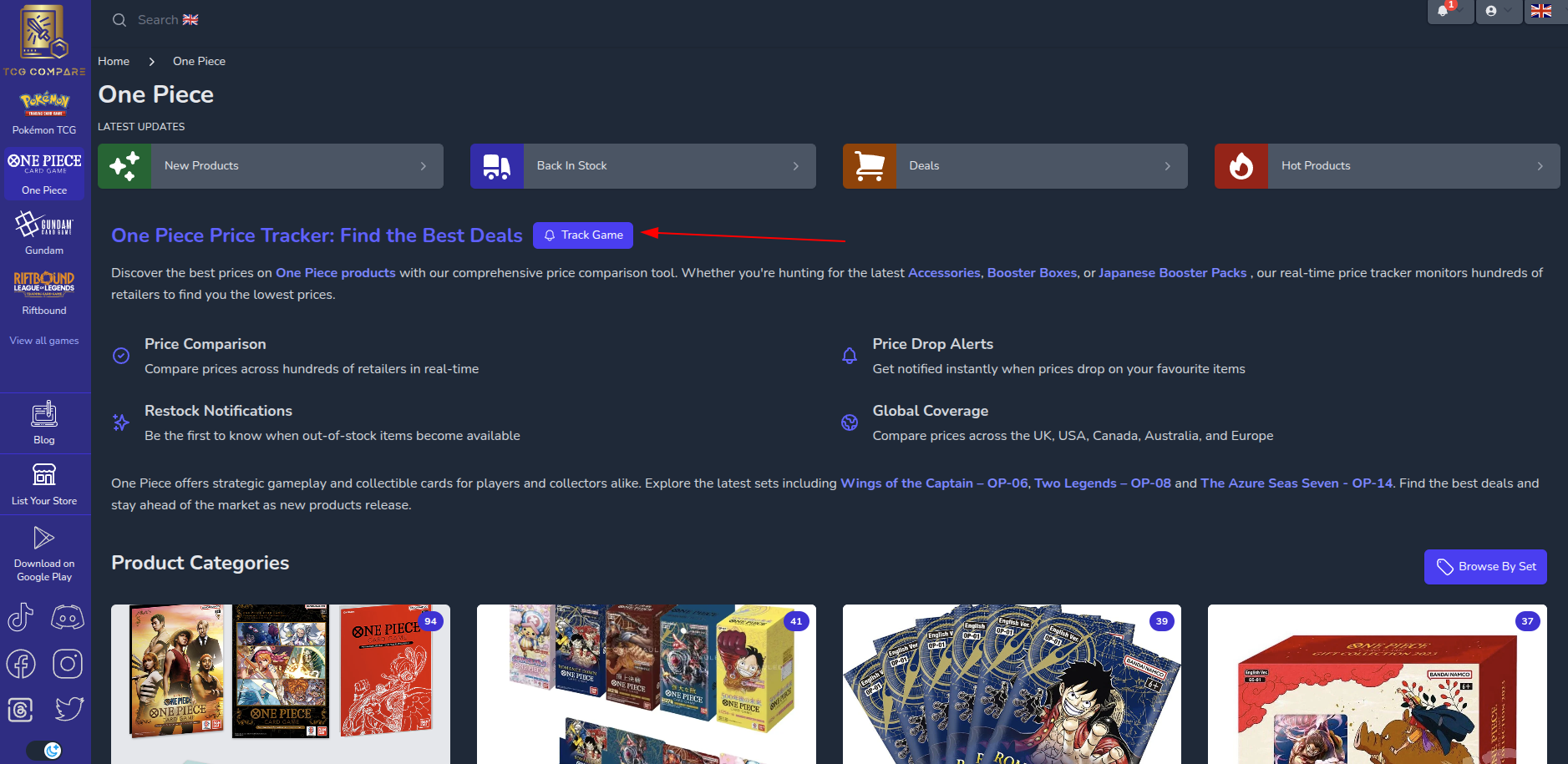
Game tracking offers these triggers:
| Trigger | What it does |
|---|---|
| New products | Notifies you when a new product is listed in that game |
| Daily deals | A daily summary of the best deals across all retailers |
| Pokémon Center Queue | (Pokémon TCG, selected countries) Notifies you when the Pokémon Center queue opens |
| Early supporter alerts | A supporter perk — early alerts for hot products as they hit retailers |
Toggle the triggers and channels you want, then click Start Tracking.
Track a Set
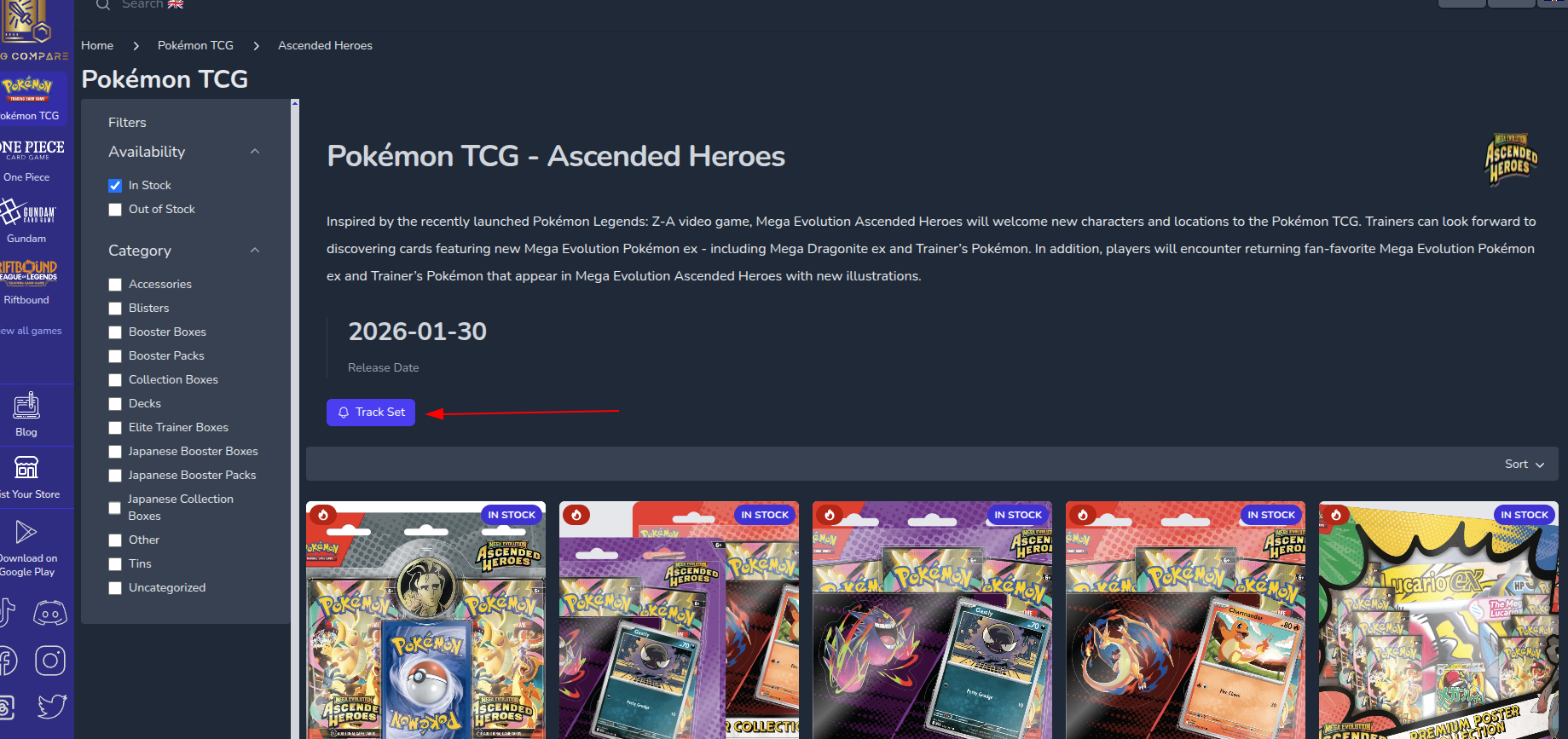
You can track all products within a specific set. Navigate to a set page (e.g. Ascended Heroes) and click the Track Set button. This will notify you about price drops, restocks, and new listings for every product in that set.
Managing Subscriptions
Notification Settings
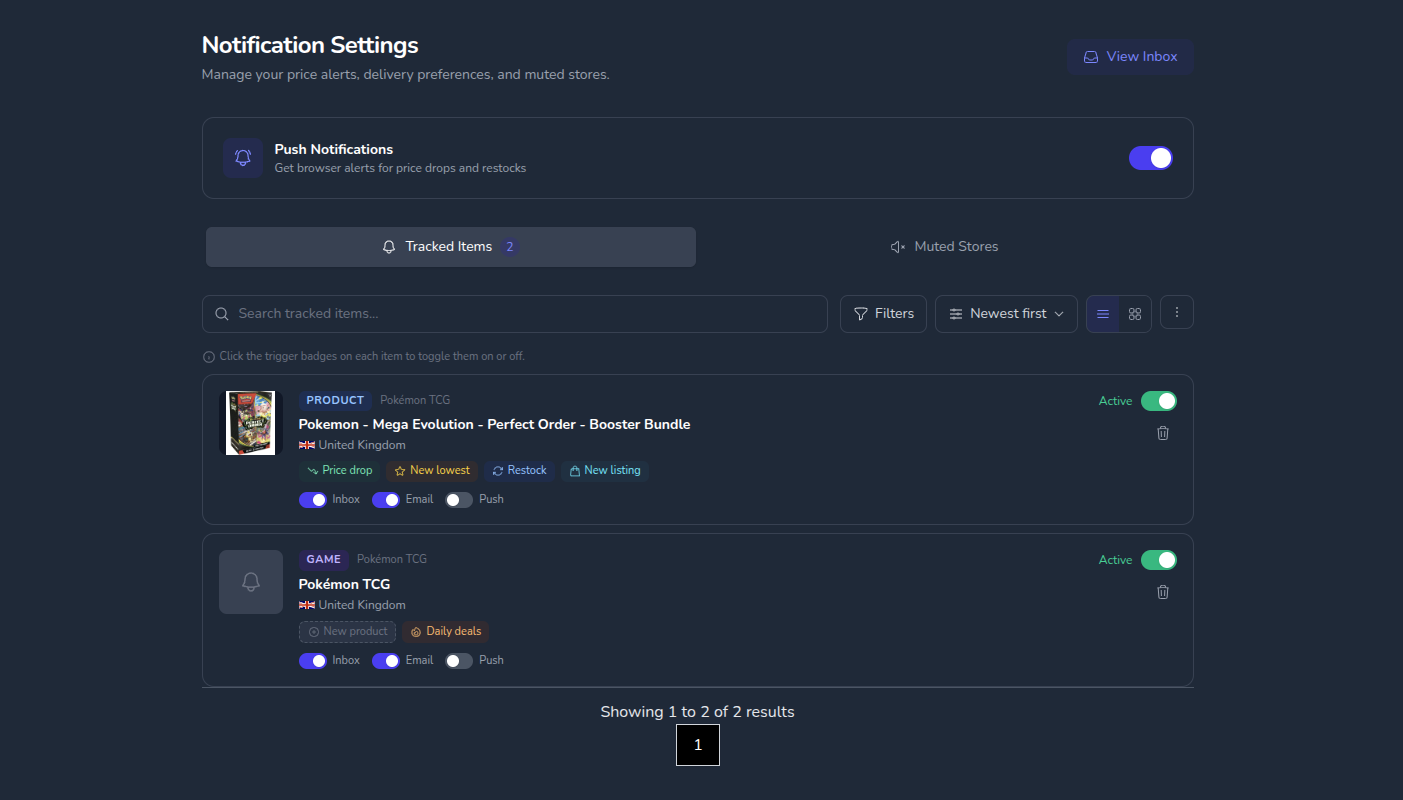
Access your notification settings from the user menu or navigate directly to Notification Settings. Here you can:
- Enable/disable Push Notifications globally
- View and manage all your Tracked Items
- Access Muted Stores
Tracked Items
The Tracked Items tab shows all your active subscriptions. For each tracked item you can:
- Toggle triggers — Each tracked item shows its alert categories as badges (e.g. Price drop, New lowest, Restock, New listing for products; New product, Daily deals, PC Queue, Early alerts for games). Click any badge to toggle it on or off — active triggers are highlighted, inactive ones are dimmed. This lets you fine-tune exactly which events you care about for each item without needing to unsubscribe entirely.
- Toggle channels — Switch Inbox, Email, and Push on or off per item
- Pause — Temporarily pause a subscription without deleting it
- Delete — Remove the subscription entirely
- Search and filter — Use the search bar to find specific items, or filter by game, type, or country
Muted Stores
If you'd rather not receive notifications from specific retailers, you can mute them. Muted stores won't trigger alerts for any of your subscriptions.
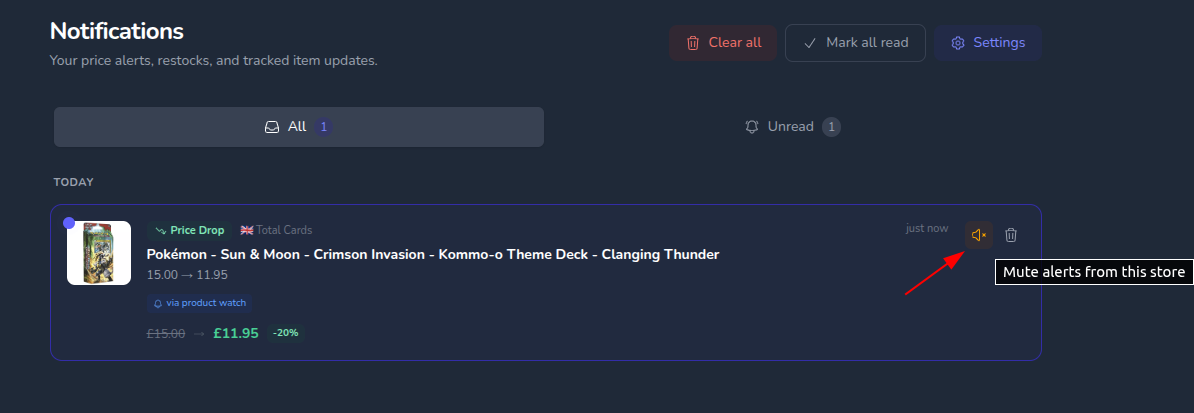
Muting a Store from a Notification
When you receive a notification, you can mute the store directly by clicking the speaker icon on the notification item. This will prevent all future alerts from that store.
Managing Muted Stores
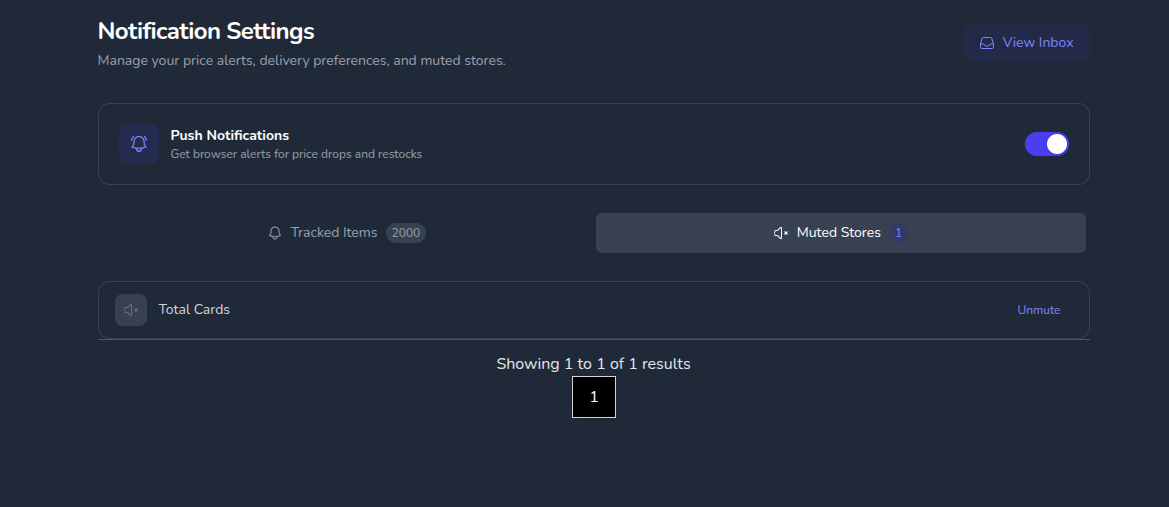
You can view and unmute stores from the Muted Stores tab in Notification Settings.
Tracked Products Dashboard
The Tracked Products dashboard gives you a quick overview of the latest prices across all your tracked products and sets — all in one place, without visiting each product page individually.
Accessing the Dashboard
You can get to the Tracked Products page from several places:
- Click the bell icon in the header, then click Tracked Products in the popover footer
- From the Notification Inbox, click Tracked Products in the header
- From Notification Settings, click Tracked Products in the header
- Navigate directly to
/notifications/tracked-products
What You'll See
For each tracked product, the dashboard shows:
- Product name and image — click any card to go to the full price comparison page
- Best available price — the cheapest price from an enabled retailer in your selected country
- Stock status — whether the best-priced listing is in stock or out of stock
- Store info — which retailer has the best price, with their logo
- Store count — how many stores carry this product and how many have it in stock
- Last updated — when the price was last checked
- Price target — supporters can set or adjust a price target inline for each product, and see at a glance whether the current price meets it
If you're tracking a set (subcategory), every product in that set appears individually with a purple "From set" label so you can tell where it came from.
Filtering and Sorting
| Control | Options |
|---|---|
| Country | Switch between any of the 10 supported countries — prices update instantly |
| Hide out of stock | Toggle to hide products where no retailer has stock |
| Sort | Name, Price (low to high), Price (high to low), or Recently Added |
Muted Stores
Prices from your muted stores are automatically excluded. If you mute the retailer with the best price, the next cheapest retailer will be shown instead.
Subscription Limits
The dashboard shows a banner when you're approaching your product watch limit, with a link to upgrade your plan for more watches.
Push Notifications
Push notifications deliver alerts directly to your browser — even when you're not on TCGCompare.
Enabling Push Notifications
- Go to Notification Settings
- Toggle the Push Notifications switch on
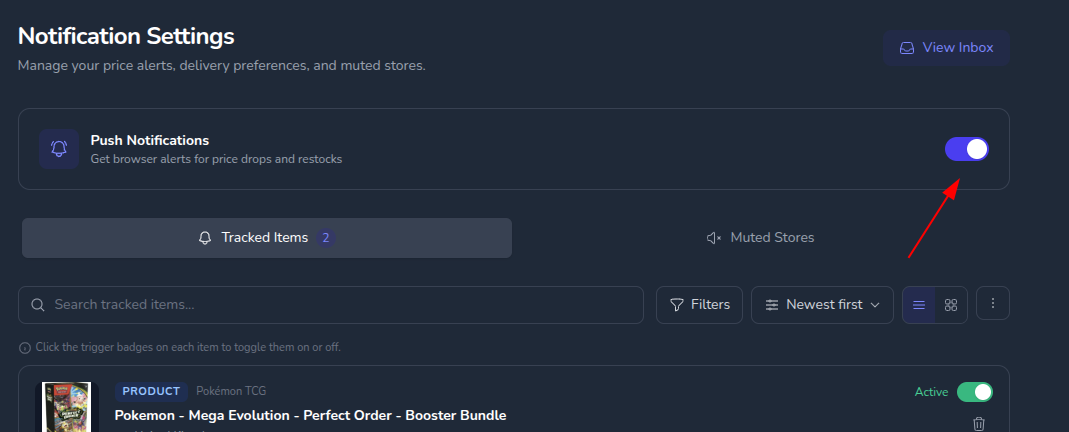
- Your browser will ask for permission — click Allow
- That's it — you'll now receive push notifications for any subscription that has the Push channel enabled
Important: Per-Device Registration
Push notifications are registered per device and per browser. If you use TCGCompare on multiple devices (e.g. your laptop and your phone), you need to enable push notifications on each one separately. The same applies if you use different browsers on the same device — each browser needs its own registration.
Browser Support
Push notifications require a modern browser: Chrome, Firefox, Edge, or Safari 16+. They work on both desktop and mobile.
How Push Notifications Work
- Alerts are delivered in real-time when a price change or restock is detected
- Clicking a push notification takes you directly to the product page
- Push notifications are sent to all devices where you've enabled them
- You can disable push notifications globally from Notification Settings, or per-item from the Tracked Items list
Notification Inbox
Click the bell icon in the top-right corner of the header to open your notification inbox. The badge shows your unread count.
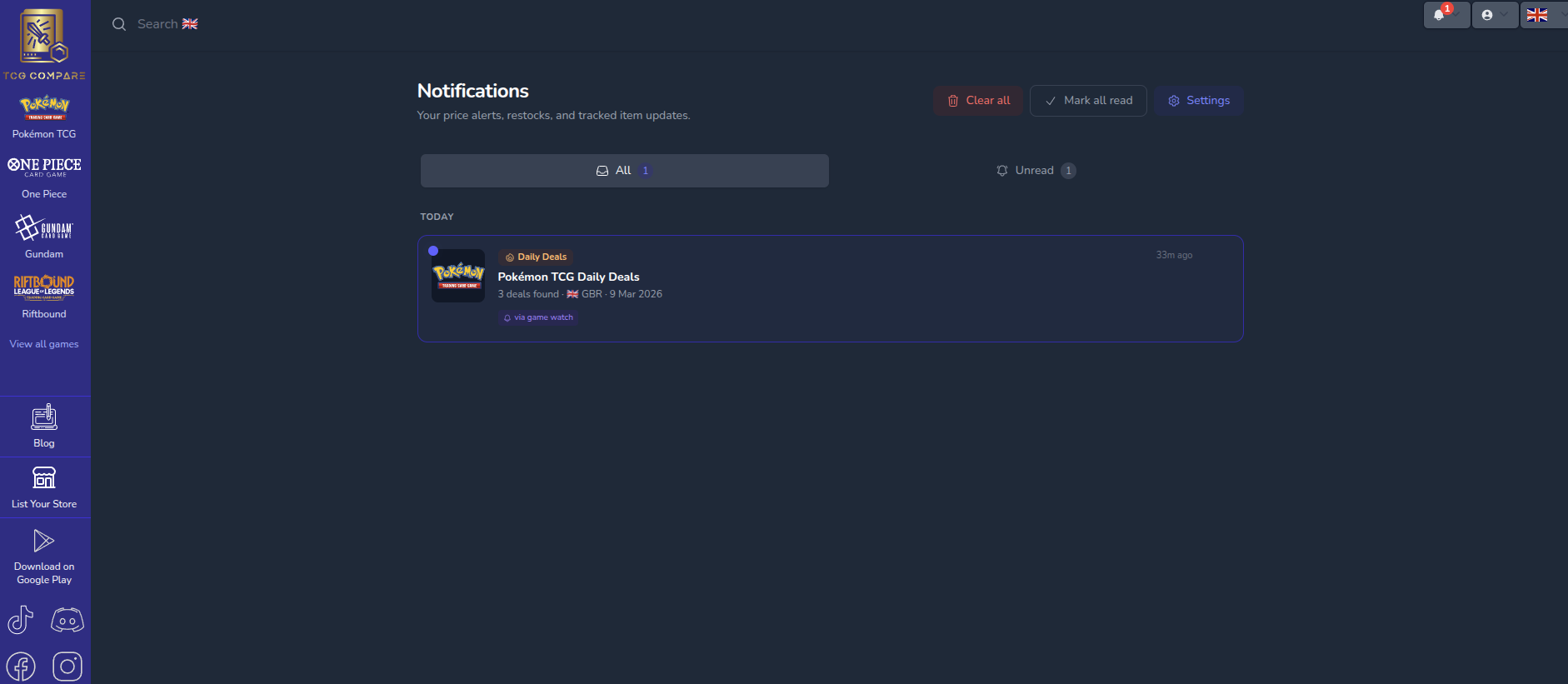
From the inbox you can:
- Read notifications to view details and jump to the product
- Mark all as read to clear the unread count
- Clear all to remove all notifications
- Mute a store directly from a notification item
TIP
The inbox stores up to 90 days of notifications. Older notifications are automatically cleaned up.
Daily Deal Summaries
If you're tracking a game, you'll receive a daily deal summary highlighting the best deals found across all retailers. This is sent via your enabled channels (inbox, email, or push).
Early Supporter Alerts
Early supporter alerts are a supporter perk. When our team spots a hot product hitting a retailer, supporters who've opted in get an alert with the product, price, store, and a direct link to buy.
- Per game — Enable it on each game you care about, so you only get alerts for the games you collect.
- Your channels — Delivered via inbox, email, and/or push, just like your other alerts.
Enabling Early Supporter Alerts
- Make sure you have an active supporter subscription
- Visit a game page and click Track Game (or Tracking if you already track it)
- Turn on Early supporter alerts and choose your channels
- Click Start Tracking (or Save changes)
Supporters only
The Early supporter alerts toggle appears for all users, but it can only be switched on with an active supporter subscription. Free users will see the option with a link to become a supporter.
Frequently Asked Questions
How do I stop receiving notifications?
You can either:
- Pause a subscription (keeps your settings, stops alerts temporarily)
- Delete a subscription (removes it entirely)
- Toggle off specific channels (e.g. turn off Email but keep Inbox)
Can I only be alerted below a certain price?
Yes — supporters can set a price target on any individual product. You'll then only be notified about listings priced at or below your target. Set it from the Track modal or inline on the Tracked Products dashboard. This is a supporter feature; free users can track products but not set a target.
Can I track the same product in multiple countries?
Yes! Each country has its own subscription. When you track a product, it creates a subscription for the currently selected country. Switch countries on the product page and track again to monitor prices in another region.
How do I see all my tracked prices in one place?
Visit the Tracked Products dashboard. You can access it from the notification bell popover, the inbox header, or directly at /notifications/tracked-products. It shows the best current price for every product and set you're tracking.
How often are prices checked?
TCGCompare continuously scrapes prices from 1000+ retailers. Most stores are checked multiple times per day, so you'll receive alerts shortly after a price changes.
I'm not receiving email notifications
Check that:
- The Email channel is enabled for your subscription
- Your email address is verified (check your spam folder for the verification email)
- You haven't exceeded the rate limit (max 10 notification emails per hour)
I'm not receiving push notifications
Check that:
- Push Notifications are enabled in Notification Settings
- Your browser has granted notification permission to TCGCompare
- The Push channel is enabled for the specific subscription
- Your browser supports push notifications